
IPTV UK Setup Guide: Firestick, Smart TV, Android & iPhone
Getting started with IPTV UK takes just a few minutes. This guide walks you through setting up StreamVista on the devices most people use in Britain – Amazon Fire TV Stick (Firestick), Smart TVs, Android TV boxes, iPhone and iPad, and computers – plus the settings that make the biggest difference to picture quality.
Not a customer yet? Start with the 24-hour IPTV UK free trial so you can test everything on your own devices first.
Before you start: what you need
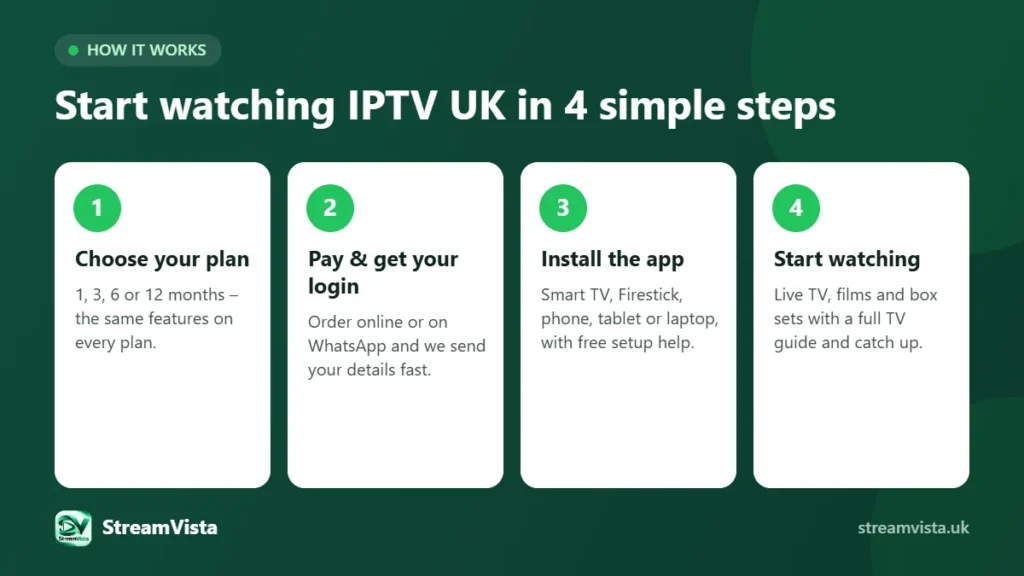
- An active StreamVista subscription or free trial, and the login details our team sends you.
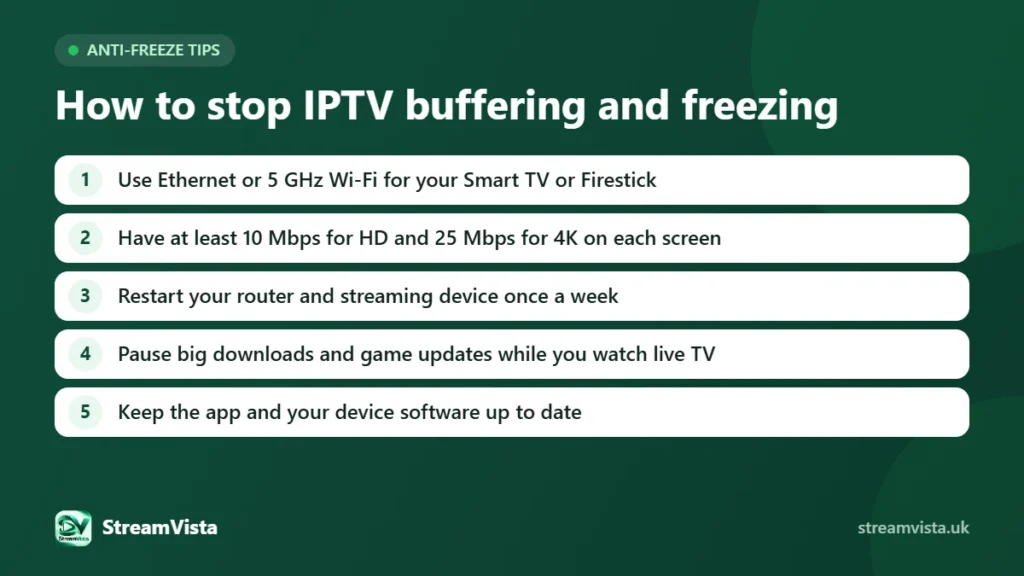
- A broadband connection of at least 10 Mbps for HD or 25 Mbps for 4K on each screen – see what internet speed you need for IPTV UK.
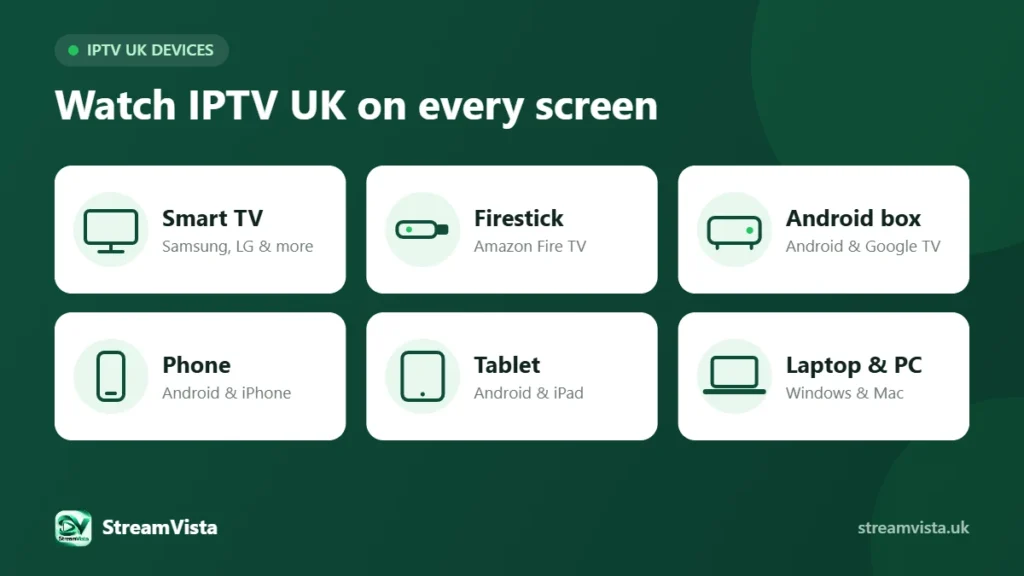
- A supported device: Fire TV Stick, Android TV / Google TV, a compatible Smart TV, Android phone or tablet, iPhone / iPad, or a Windows / Mac computer.
- About five minutes. If you get stuck, our support team will set it up with you for free.
How to install IPTV on a Firestick in the UK (step-by-step)
The Amazon Fire TV Stick – better known as the Firestick – is the most popular way to watch IPTV in the UK because it plugs straight into any TV with an HDMI port.
- Plug the Fire TV Stick into your TV and connect it to your Wi-Fi.
- Install the app using the download link or code we send you with your login details.
- Open the app and sign in with your StreamVista username and password.
- Wait a few seconds while your channel list, TV guide and on-demand library load.
- Mark your favourite channels so they appear at the top of the list.
Tip: use the 5 GHz Wi-Fi network if your router offers one, or an Ethernet adapter for the most stable picture.
How to set up IPTV UK on a Smart TV
Samsung (Tizen), LG (webOS), Hisense, TCL and Google TV models all work slightly differently – our guide to UK Smart TV platforms explains the differences. The steps are broadly the same:
- Make sure your TV is connected to the internet and its software is up to date.
- Install the app from the link or store name our team gives you for your TV brand.
- Sign in with your StreamVista login details.
- Set the picture mode to “Standard” or “Movie” for the most natural colours.
If your TV is older or its app store is limited, a Fire TV Stick or Android TV box is usually the quickest fix.
How to set up IPTV on Android TV, Android boxes, phones and tablets
- Install the app using the link or store listing we send you.
- Open it and enter your login details.
- On phones and tablets, turn on “Wi-Fi only” streaming if you want to avoid using mobile data.
How to set up IPTV UK on iPhone, iPad and Mac
- Install the app using the link we provide.
- Sign in with your StreamVista account.
- Use AirPlay if you want to send a programme from your iPhone to an Apple TV or compatible Smart TV.
How to watch IPTV UK on a Windows PC or laptop
Install the desktop app or open the web player link from your welcome message, then sign in. A wired connection gives the smoothest playback on a computer.
Settings that stop buffering
- Restart your router and streaming device once a week.
- Place the router in the open, not inside a cabinet or behind the TV.
- Use Ethernet or the 5 GHz band for 4K streams.
- Close other large downloads while you watch live sport.
- Still buffering on a fast line? Read why fast UK fibre can still buffer.
Do I need IPTV Smarters or a VPN?
No to both. StreamVista has its own app, so you do not need a third-party player such as IPTV Smarters – just sign in with the details we send you. Because the service is licensed, it also works on any normal UK broadband or mobile connection without a VPN, and a VPN can even add buffering by routing your stream through another server.
Need help with setup?
Every StreamVista plan includes free setup assistance. Contact our IPTV UK support team and we will guide you step by step, or read the IPTV UK FAQ for quick answers. Ready to choose a plan? Compare our IPTV UK subscription plans.